Rapid Friday Sale is Live!
Get exclusive discounts on all products
Dec 09, 2025

4 min read


Choosing React Native isn't just a technical decision; it's a strategic move. It's about building high-performance, cross-platform apps for both iOS and Android from a single JavaScript codebase. For startups and enterprises alike, this approach is a proven way to slash development time, cut costs, and reach a wider audience without the headache of managing two separate dev teams.
Before we jump into the code, it's worth taking a moment to appreciate why React Native is such a compelling option. This goes way beyond the classic "write once, run anywhere" pitch. We're talking about real business benefits and a developer experience that strikes a fantastic balance between raw efficiency and a polished, near-native feel for the end user.

When you get down to it, the choice to go with React Native usually boils down to a few key factors that directly impact your project's timeline and bottom line. These aren't just hypotheticals—I've seen them play out on projects of all sizes.
The most obvious win is accelerated development. Sharing one codebase across both platforms dramatically cuts down on engineering effort and makes shipping new features so much smoother. Having a single team simplifies project management and ensures your iOS and Android apps look and feel consistent.
That efficiency flows straight to your budget. You completely sidestep the cost of hiring and managing separate iOS and Android developers, which can be a total game-changer, especially for bootstrapped startups. It frees up resources you can pour into other critical areas, like marketing or user feedback.
React Native's real power is amplified by its massive, active community. Its dominant market position means the talent pool is huge, making it far easier to find skilled developers to join your team.
This community has also built an incredible ecosystem of tools, libraries, and third-party packages that solve all the common problems, from navigation to state management. You almost never have to build complex features from scratch, which just compounds the speed advantages.
The numbers really tell the story. React Native commands 42% of the cross-platform mobile development market share. On a typical project, developers can expect to achieve 70-85% code reuse between iOS and Android. That's a massive reduction in effort compared to building two separate native apps.
To put things in perspective, here’s a quick rundown of how React Native stacks up against traditional native development.
| Metric | React Native | Native Development (iOS/Android) |
|---|---|---|
| Codebase | Single JavaScript/TypeScript codebase | Separate Swift/Kotlin codebases |
| Team Size | One unified team | Two separate, specialized teams |
| Development Speed | Faster due to code reuse & hot-reloading | Slower; features built twice |
| Cost | Lower (fewer developers, less time) | Higher (larger team, longer timeline) |
| UI Consistency | Easier to maintain across platforms | Requires careful synchronization |
| Performance | Near-native; excellent for most apps | Highest possible performance |
| Talent Pool | Large and growing (JavaScript/React) | Specialized and often more expensive |
While native will always have a slight edge in raw performance for graphically intense apps like complex games, for the vast majority of applications, React Native delivers a fantastic user experience without the overhead.
This isn't just a framework for small projects. Industry giants like Shopify, Instagram, and Tesla rely on React Native to serve millions of users every day, proving its muscle for handling enterprise-level demands. Seeing that kind of adoption gives you confidence that the framework is robust, scalable, and here to stay.
To see how React Native fits into the broader ecosystem, take a look at our guide on other popular cross-platform app development tools.
Every great app starts with a solid foundation. Before you can jump into writing code, you need to get your local development environment set up properly. Trust me, getting your tooling right from the very beginning saves countless hours of frustration down the road. For this guide, we'll be leaning heavily on the Expo ecosystem, which smooths out many of the traditional bumps in the mobile development world.

Our setup will use a modern, robust stack: Expo for the framework and TypeScript for static typing. This combo is my go-to for any new project because the developer experience is fantastic, and it helps you squash common bugs before they ever make it into your app.
First things first, you'll need a few essential tools installed on your machine. Think of these as the bedrock of your entire development workflow. Without them, you won't get very far.
Once these are all installed, you're ready to bring in the main tool for the job.
The Expo Command Line Interface (CLI) is the central hub you'll use to create, run, and build your applications. It abstracts away a tremendous amount of platform-specific complexity, letting you focus almost entirely on writing your app's logic and UI in TypeScript.
With Node.js and npm ready to go, installing the Expo CLI is just a single command. Pop open your terminal or command prompt and run this:
npm install -g expo-cli
The -g flag is important here; it installs the package globally on your system. This makes the expo command available from any directory, so you can spin up new projects without having to be in a specific folder.
For a more detailed walkthrough, our comprehensive guide on the complete React Native setup covers additional configurations and troubleshooting tips you might find helpful.
After the installation finishes, you can quickly verify it by running expo --version. If you see a version number printed back, you're all set.
Now for the exciting part—creating your first application. Navigate in your terminal to the directory where you want your project to live and run this command:
npx create-expo-app@latest my-first-app --template blank-typescript
Let’s quickly break down what this does. The create-expo-app tool scaffolds a new project, my-first-app is simply the name of your project's folder, and the --template blank-typescript flag is crucial. This tells Expo to set up a minimal project that's pre-configured to use TypeScript, giving you that sweet, sweet type-safety from day one.
Once the process wraps up, cd into your new project directory (cd my-first-app) and kick off the development server:
npx expo start
This command fires up the Metro Bundler, which compiles all your code on the fly. It will also pop a QR code into your terminal. Now, just download the Expo Go app on your iOS or Android device, scan the QR code, and you'll see your brand-new app running live. This incredibly fast feedback loop is honestly one of Expo's most powerful features.
The user interface is your app's handshake with the world—it’s the very first impression you make. Getting it right is absolutely essential, and that’s where we turn our attention now. We're going to build a modern, responsive UI using NativeWind, a brilliant tool that brings the developer-friendly power of Tailwind CSS straight into React Native.
This isn't just about making things look good. It's about building them faster and smarter. Instead of juggling separate stylesheet files and constantly switching contexts, you apply styles directly inside your components using simple, descriptive class names. This keeps your styling logic right where it belongs—next to your component logic—making your entire codebase cleaner and much easier to manage as your app grows.
Utility-first frameworks like Tailwind CSS (and its React Native counterpart, NativeWind) have completely changed the game for styling. The old way involved creating specific, one-off classes for every component, like .user-profile-card or .big-blue-button. The new way? You build up your UI from small, single-purpose utility classes like p-4, bg-blue-500, and font-bold.
This shift has some serious advantages:
StyleSheet objects. This means you get a fantastic developer experience with no runtime overhead. Your app stays just as fast.The global market for React Native development is exploding—valued at around USD 325 million in 2024, it’s expected to climb to USD 499 million by 2031. This isn't just random growth; it's driven by the demand for tools that make development more efficient. NativeWind is a huge piece of that puzzle. For more on this, check out the React Native market projections on intelmarketresearch.com.
Integrating NativeWind into an Expo project is a piece of cake. First things first, you'll need to install NativeWind and its required partner, Tailwind CSS.
Pop open your terminal in your project's root directory and run these commands:
npx expo install nativewind
npm install --save-dev tailwindcss
Next up, you need a configuration file for Tailwind. This is where you'll define your app's custom theme—colors, fonts, spacing, you name it. Generate the tailwind.config.js file with this command:
npx tailwindcss init
Now, open that new file. You need to tell Tailwind which files it should scan for utility classes. This is a critical step; it’s how the compiler knows which styles to include in the final bundle.
// tailwind.config.js module.exports = { content: [ "./App.{js,jsx,ts,tsx}", "./screens//*.{js,jsx,ts,tsx}", "./components//*.{js,jsx,ts,tsx}" ], theme: { extend: {}, }, plugins: [], }
The final piece of the puzzle is adding the NativeWind Babel plugin. This is the secret sauce that transforms your class names into actual React Native styles. Open up your babel.config.js and add it in.
// babel.config.js module.exports = function (api) { api.cache(true); return { presets: ["babel-preset-expo"], plugins: ["nativewind/babel"], // This is the line you add }; };
And that's it! Restart your development server, and you're ready to start styling with utility classes. For a much deeper look, we have a whole guide on using Tailwind CSS in React Native that covers more advanced setups.
Time to see this in action. We'll build a classic UI element: a user profile screen. We'll use core React Native components like View, Text, and Image and bring them to life with NativeWind classes.
First, create a new file named UserProfile.tsx. Inside, we’ll set up a simple structure.
import { View, Text, Image, SafeAreaView } from 'react-native'; import { styled } from 'nativewind';
const StyledView = styled(View); const StyledText = styled(Text); const StyledImage = styled(Image);
const UserProfile = () => { return ( <SafeAreaView className="flex-1 bg-gray-100"> <StyledView className="p-6 items-center"> <StyledImage className="w-24 h-24 rounded-full mb-4 border-4 border-white" source={{ uri: 'https://placehold.co/100x100' }} /> <StyledText className="text-2xl font-bold text-gray-800"> Alex Doe </StyledText> <StyledText className="text-md text-gray-500"> React Native Developer </StyledText> </StyledView> </SafeAreaView> ); };
export default UserProfile;
A quick pro-tip: See that
styledfunction from NativeWind? While you can often just add theclassNameprop directly to core components, wrapping them withstyledgives you better TypeScript support and compatibility, especially when you start working with your own custom components.
This little block of code perfectly shows off NativeWind's power. We just built a clean, structured profile header with styles like a rounded image, a border, and specific font weights—all with just a few intuitive class names. No separate style files, no complex CSS-in-JS objects. This is exactly how modern teams build apps faster.
When your app starts to grow, how you handle its state can either make or break the entire project. For simple apps, just passing props down the component tree might get you by. But trust me, that approach gets messy, and fast. This is exactly where a dedicated state management strategy becomes non-negotiable for building clean, predictable, and maintainable React Native apps.
The real challenge is dealing with data that needs to be accessed by multiple components, often ones that are nowhere near each other in the component tree. Without a solid system, you’ll find yourself tangled in a web of component dependencies and wrestling with unpredictable bugs. The goal here is simple: create a single source of truth for your app's data, making it a breeze to read, update, and debug.
When it comes to managing state, you've got a few really solid options. The right choice usually boils down to your app's complexity. A classic mistake I see all the time is over-engineering a solution for what is ultimately a simple problem.
To put this in perspective, here’s a decision-making flowchart we use for UI styling—the same principle of "right tool for the job" applies perfectly to state management.
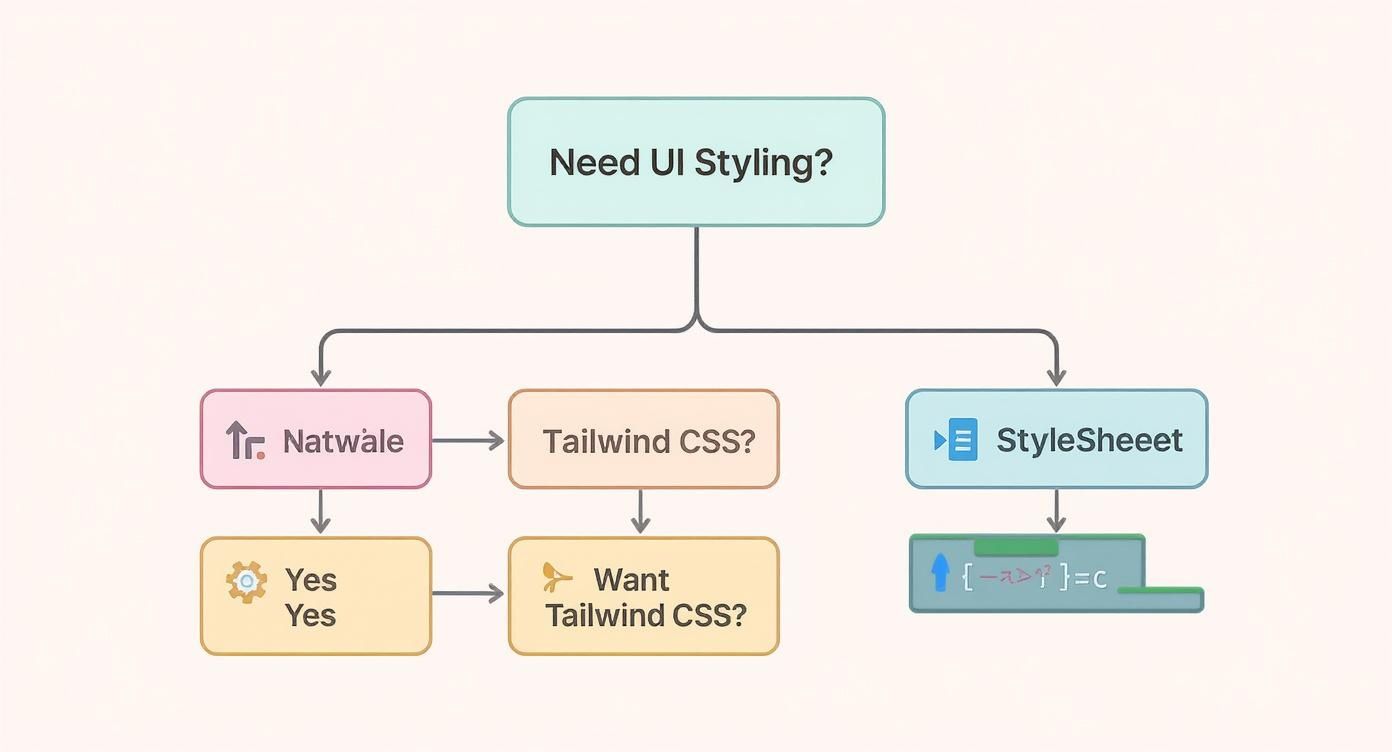
The flowchart makes it clear: the "best" tool is the one that fits your specific project needs without adding unnecessary complexity.
So, let's see how the most common state management approaches stack up:
useState & useContext): This is your built-in solution, straight from React. useState is perfect for local component state. When you need to share that state across a few nested components, wrapping it in useContext works beautifully. It's simple, requires zero external libraries, and is ideal for small to medium-sized apps where state isn't deeply interconnected.For a huge number of projects I've worked on, Zustand hits that perfect sweet spot. It delivers the power of a global store without the steep learning curve or ceremonial boilerplate of Redux. It's a fantastic starting point for scalable state management.
Let's walk through a quick, practical example of setting up a simple state management store with Zustand. You'll be surprised how straightforward it is.
First, pop open your terminal and install it.
npm install zustand
Next up, we create a "store." This is really just a file where you define your state and the actions that can change it. Let's imagine we're building a feature to manage a user's authentication status.
// src/store/authStore.ts import { create } from 'zustand';
interface AuthState { isLoggedIn: boolean; user: { name: string; email: string } | null; login: (userData: { name: string; email: string }) => void; logout: () => void; }
export const useAuthStore = create<AuthState>((set) => ({ isLoggedIn: false, user: null, login: (userData) => set({ isLoggedIn: true, user: userData }), logout: () => set({ isLoggedIn: false, user: null }), }));
This little snippet defines our state's shape and two actions, login and logout. That set function is how Zustand safely updates the store.
Now for the fun part. Using this state in any component couldn't be easier. You just import the hook and call it.
// src/components/UserProfile.tsx import React from 'react'; import { View, Text, Button } from 'react-native'; import { useAuthStore } from '../store/authStore';
const UserProfile = () => { const { isLoggedIn, user, logout } = useAuthStore();
if (!isLoggedIn) { return <Text>Please log in.</Text>; }
return ( <View> <Text>Welcome, {user?.name}!</Text> <Button title="Log Out" onPress={logout} /> </View> ); };
And just like that, your component is plugged into the global state. When that logout function is called, the state updates, and any component that subscribes to isLoggedIn or user will automatically re-render. It's this clean, decoupled approach that is absolutely key to building maintainable React Native apps where your state logic remains predictable, even as your app grows.
Building the first version of your app is a huge win, but let's be real—the real work starts after launch. This is where you either drown in maintenance or you build a process that saves your sanity. Manually testing every feature before each release isn't just slow; it's a surefire way to ship bugs and burn out your team.
This is where a solid automated quality process becomes your secret weapon. By weaving automated testing and a Continuous Integration/Continuous Deployment (CI/CD) pipeline directly into your workflow, you create a powerful safety net. This system automatically validates every single code change, catching issues early and giving your team the confidence to ship features fast without breaking things.
<iframe width="100%" style="aspect-ratio: 16 / 9;" src="https://www.youtube.com/embed/OJ2u9tQCpr4" frameborder="0" allow="autoplay; encrypted-media" allowfullscreen></iframe>Before we can automate anything, we actually need some tests to run. In the React Native world, the dream team for this is Jest and React Native Testing Library. Jest is the test runner and assertion engine, while React Native Testing Library gives you a clean, user-focused way to interact with your components.
Let's get this wired up in our Expo project. The expo-router template often comes with Jest pre-configured, but if you're starting from scratch, it's a breeze to set up.
jest, jest-expo, and react-native-testing-library. The jest-expo package is the magic glue that makes Jest play nicely with the Expo environment.jest.config.js file in your project's root. This file tells Jest where to find your tests and what presets to use. The jest-expo preset is essential.__tests__ directory, but you can also place them right next to the components they're testing (e.g., Button.test.tsx). The key is to test from the user's perspective, not the implementation details.For instance, instead of checking a component's internal state, a good test confirms that when a user taps a button, the right text shows up on the screen. This makes your tests far more resilient when you decide to refactor your code down the line.
Let's put this into practice and test the UserProfile component we built. We want to make sure it displays the user's name correctly and that the logout button actually does its job.
With React Native Testing Library, the test is surprisingly readable:
// tests/UserProfile.test.tsx import React from 'react'; import { render, fireEvent } from '@testing-library/react-native'; import UserProfile from '../components/UserProfile'; import { useAuthStore } from '../store/authStore';
// Mock the Zustand store jest.mock('../store/authStore');
it('displays user name and handles logout', () => { // Set up the mock store's initial state useAuthStore.setState({ isLoggedIn: true, user: { name: 'Alex Doe', email: '[email protected]' }, });
const { getByText } = render(<UserProfile />);
// Assert that the user's name is rendered expect(getByText('Welcome, Alex Doe!')).toBeTruthy();
// Simulate a press on the logout button fireEvent.press(getByText('Log Out'));
// You would then assert that the logout function from the store was called
});
This test doesn't care how the UserProfile component is built; it only cares that it behaves as expected for the user. That’s what makes it so valuable for catching regressions.
Automated tests are your first line of defense. They run in seconds and can check hundreds of interactions across your app, providing immediate feedback that would take a human tester hours to replicate. This rapid feedback loop is fundamental to agile development.
Okay, our tests are written. Now for the fun part: automating the whole thing. A CI/CD pipeline will automatically run our tests and build our app every time we push code to our repository. We’ll use GitHub Actions to orchestrate the workflow and Expo Application Services (EAS) to handle the native builds.
Here’s how it all connects:
.apk or .ipa files.This level of automation isn't just a "nice-to-have" anymore; it's standard practice in modern development. The 2023 Stack Overflow Developer Survey found that about 9% of professional developers use React Native, a testament to its strong community and the mature tooling that has grown around it. You can explore more of these trends and what's next for the framework with valuable insights from esparkinfo.com.
To set this up, you'll create a YAML file in your project's .github/workflows directory. This file defines the jobs to run, like installing Node.js, running npm install, and executing npm test. For the EAS build step, you'll need to store your Expo token securely as a secret in your GitHub repository settings.
By combining Jest, React Native Testing Library, GitHub Actions, and EAS, you create a powerful, hands-off system. It’s a setup that ensures every change is rigorously tested and built, which dramatically improves your app's stability and makes the entire process of building apps with React Native a whole lot smoother.
Once you get past the "Hello, World!" tutorials and start building real apps, the questions get a lot trickier. The docs are great for step-by-step instructions, but real-world development is all about navigating the nuances and trade-offs of the React Native ecosystem.
This isn't another tutorial. Think of it as a quick chat with a senior dev—practical answers to the problems you'll actually hit. Getting these concepts down will save you a ton of headaches and lead to a much stronger app.
If your app feels slow, your first job is to play detective. Don't just guess what the problem is. Fire up a tool like Flipper or the built-in profiler to find the real bottleneck. Is it a ton of re-renders? Or maybe a heavy calculation is choking the JavaScript thread?
Once you've identified the culprit, you can bring in the right tool for the job. A few of the most reliable fixes are:
FlatList is your best friend. Even better is FlashList from Shopify. Unlike a basic ScrollView that tries to render everything at once, these only render the items visible on screen. It’s a game-changer for memory and responsiveness.React.memo. This is a simple way to tell React, "If the props haven't changed, don't bother re-rendering this." It's incredibly effective for complex UI elements that get re-rendered by their parent over and over.useNativeDriver: true. This one little line hands the animation work off from the JavaScript thread to the native UI thread. The result? Silky-smooth, 60 FPS animations that never stutter, even when the JS thread is busy.This is a huge point of confusion for developers new to the Expo ecosystem.
Expo Go is the app you download from the App Store or Google Play. It’s a pre-packaged client that contains a bunch of common native modules. You scan a QR code, and your app just runs. It’s fantastic for getting started fast and for projects that don't need any custom native code.
A development build, however, is your app, compiled from scratch. It includes every single native library you've added to your project. You absolutely have to switch to a development build the moment you need a native module that isn't already baked into Expo Go—think things like in-app purchases, Bluetooth, or specific device sensors.
The bottom line: Expo Go is for rapid prototyping with a standard set of native tools. A development build gives you a custom native runtime, giving you total control and flexibility for a production app.
Yes, and you absolutely should when the situation calls for it. This is where React Native really shines, letting you drop down to the native layer when JavaScript isn't the right tool for the job. You can write your own custom native modules in Swift (or Objective-C) for iOS and Kotlin (or Java) for Android.
So, when would you do this?
The process involves creating a "bridge" that lets your JavaScript code call your native functions. It sounds intimidating, but it's a well-documented path for building truly powerful, professional-grade apps.
Ready to skip the setup and start building faster? theappmarket offers a massive collection of production-ready React Native templates and UI kits. Built with Expo, TypeScript, and NativeWind, our templates give you a huge head start on your next project. Check out our full catalog at https://theappmarket.io and ship your app in record time.

Dec 08, 2025
4 min read
android login with facebook: Learn to set up the Facebook SDK, manage tokens, and implement secure authentication across native Android, cross-platform apps.

Dec 07, 2025
4 min read
Master the alert in React Native. Learn to handle platform differences, build custom modals, and apply best practices for a seamless user experience.

Dec 06, 2025
4 min read
keyboardavoidingview react native: Master keyboard handling with KeyboardAvoidingView across iOS, Android, Expo, and TypeScript.

Dec 05, 2025
4 min read
A practical guide to implementing a React Native PDF viewer. Learn to compare libraries, handle native setup, and troubleshoot common issues with real code.

Dec 04, 2025
4 min read
how to validate startup idea: learn proven methods like customer interviews, MVPs, and metrics to confirm market fit.

Dec 03, 2025
4 min read
how to make app like uber: Learn core features, tech stack, development steps, testing, and launch tips.

Dec 02, 2025
4 min read
Build a rock-solid React Native setup. This guide covers Expo vs. Bare workflows, TypeScript, pnpm monorepos, NativeWind, and deployment strategies.

Dec 01, 2025
4 min read
A practical guide to Stripe React Native integration. Learn to set up your server, build payment UIs, handle webhooks, and launch secure mobile payments.

Nov 30, 2025
4 min read
Learn how to master push notifications in React Native. This guide covers setup, best practices, and advanced techniques for engaging your users.

Nov 29, 2025
4 min read
Build powerful location-based apps with our practical guide to react native with google maps. Get setup guides, pro tips, and best practices for iOS & Android.

Nov 28, 2025
4 min read
Explore deep linking react native with a practical guide to configuring URL schemes, universal links, navigation, and testing for Expo and bare apps.

Nov 28, 2025
4 min read
A practical guide to building a scalable React Native design system. Learn to implement tokens, theming, and tools like NativeWind and gluestack-ui.

Nov 26, 2025
4 min read
Learn why react native expo templates speed up your projects with ready-made patterns and practical tips.

Nov 25, 2025
4 min read
Discover how to improve developer productivity with actionable strategies for workflow, tooling, and culture. A practical guide for software engineering teams.

Nov 24, 2025
4 min read
Discover the best cross platform app development tools. Compare top frameworks like Flutter and React Native to build and ship apps faster.

Nov 23, 2025
4 min read
This Expo React Native tutorial provides a hands-on guide to building cross-platform apps. Learn setup, styling with NativeWind, navigation, and deployment.

Nov 22, 2025
4 min read
Build beautiful UIs faster with this guide to Tailwind CSS React Native. Learn setup, styling, and advanced techniques with NativeWind for mobile apps.

Nov 21, 2025
4 min read
Explore our curated list of 7 top-tier React Native app examples. Discover production-ready templates and resources to build your next app faster.

Mar 19, 2025
4 min read
theappmarket offers React Native UI templates to accelerate development. Get customizable, production-ready React Native app templates and Ui kit, some free. Build faster & smarter today!


