Rapid Friday Sale is Live!
Get exclusive discounts on all products
Dec 05, 2025

4 min read

Let's be honest, kicking a user out of your app just to view a PDF feels clunky and unprofessional. In today's mobile world, people expect a seamless experience. If they need to see an invoice, a report, or an e-book, they want to do it right there, without being punted to a third-party reader. It's a small detail that makes a huge difference, keeping them engaged and making your app feel polished and complete.
This isn't just a nice-to-have feature; it's often critical. Think about it. Would you trust a banking app that couldn't show you your monthly statement? Or a learning app that made you download a separate program just to read the course materials? These are major points of friction that can easily lead to frustration and, ultimately, users abandoning your app. By building a PDF viewer right in, you're directly boosting your app's core value. You can see just how powerful this kind of integrated functionality is by checking out some of these innovative React Native app examples.
Adding a native-feeling PDF viewer does more than just display files. It unlocks a few strategic advantages for your entire application.
Here’s what you really gain:
The global React Native development market was valued at USD 325 million in 2024 and is projected to hit USD 499 million by 2031. This explosive growth just underscores how dominant the framework has become and highlights the rising demand for essential tools like a solid React Native PDF viewer to build the kind of feature-rich apps users now expect.
Picking the right library for your React Native PDF viewer is probably the single most important call you'll make here. This isn't just about features—your choice directly impacts your app's performance, how big the final app bundle is, and frankly, how complicated the setup will be.
When you're staring down the options, you'll find there are really three main paths you can take. Each comes with its own set of trade-offs.
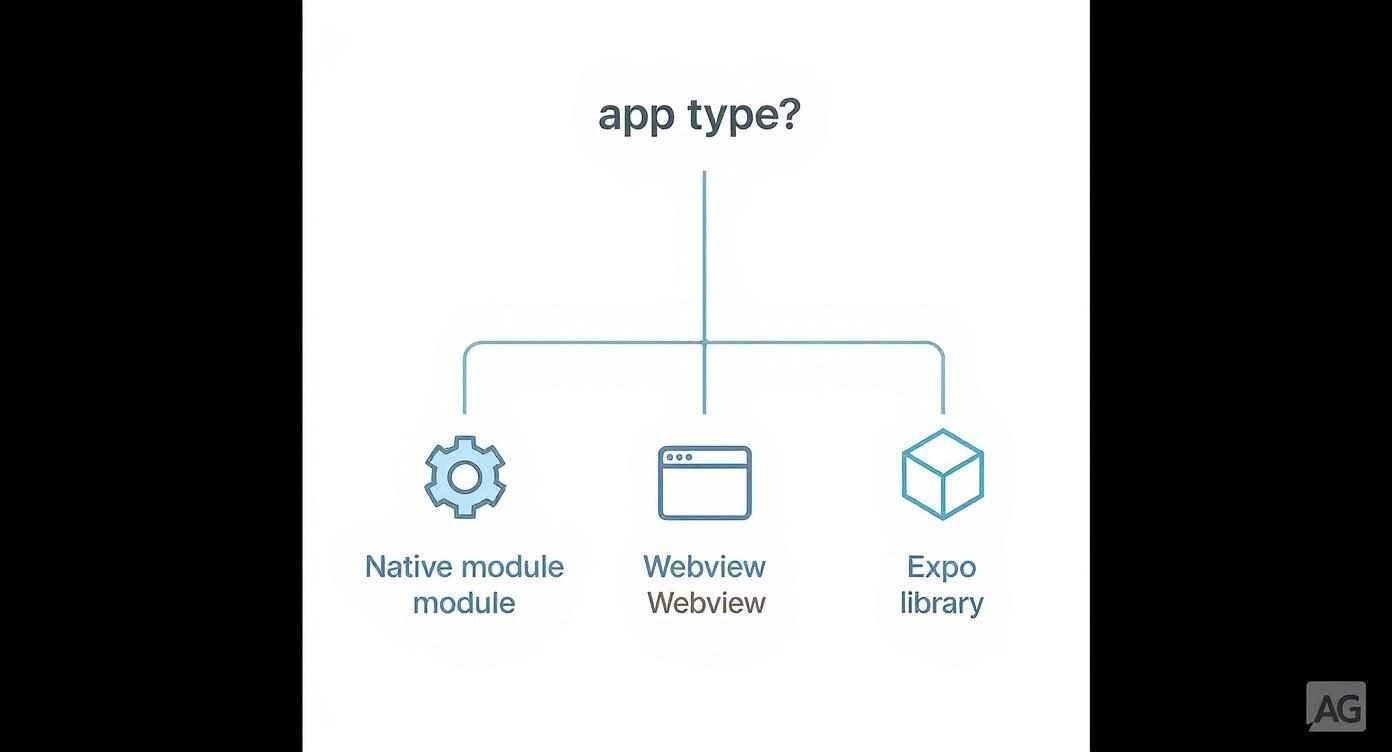
The flowchart breaks it down nicely. If raw, unadulterated performance is your top priority, you're looking at native modules. If you need web compatibility or a super custom UI, the WebView route is your friend. And if you just want to get up and running with minimal fuss, especially in an Expo project, there are solutions built just for that.
To help you decide, I've put together a quick comparison of the main approaches. Think of this as your cheat sheet for weighing the pros and cons based on what your project actually needs.
| Approach | Best For | Performance | Setup Complexity | Key Features |
|---|---|---|---|---|
| Native Module | High-performance apps, large/complex documents, and deep OS integration. | Excellent | High | Fast rendering, low memory usage, native UI components (zoom, scroll). |
| WebView + PDF.js | Cross-platform consistency (iOS, Android, Web), custom UI controls. | Fair to Good | Medium | Highly customizable, works on the web, single codebase for all platforms. |
| Expo-Compatible | Expo-managed projects, rapid development, and simplicity. | Good | Low | Easy setup, no native code config, works within Expo Go. |
Ultimately, there’s no single "best" option—it all comes down to what you’re building. A high-performance document management app has very different needs than a simple utility that just needs to display a receipt.
When your app absolutely has to feel snappy and responsive, a native-backed library like react-native-pdf is usually the way to go. These libraries are essentially a bridge to the powerful PDF rendering engines built right into the device's operating system—think PDFKit on iOS and PdfRenderer on Android.
This direct line to the native code means you get blazing-fast load times, buttery-smooth scrolling, and much lower memory consumption. It’s a game-changer for large, complex documents. But this power doesn't come for free. You'll have to get your hands dirty with native dependencies, which can mean wrestling with Xcode and Android Studio. If you're new to the native side of things, our guide on a proper React Native setup can be a lifesaver.
Another popular game plan is to render your documents inside a WebView component using Mozilla's fantastic PDF.js library. This strategy basically puts a tiny, self-contained web browser inside your app that's dedicated to showing PDFs.
The biggest win here is flexibility. You get amazing consistency across iOS, Android, and even the web. If you need to build a completely custom UI around the viewer or reuse existing web-based logic, this is a fantastic choice. The trade-off? A noticeable performance dip compared to the native route. JavaScript-based rendering is just slower and hungrier for memory, which you might feel with really big files. It also means adding react-native-webview to your project, which will bump up your app's final size.
Building with Expo? Then you'll want a library that plays nice in its managed workflow. A lot of the heavy-duty native libraries require tinkering with files and settings that you simply can't access without "ejecting" to a bare project.
Luckily, the community has built solutions specifically for Expo that hide all that native complexity from you. These packages prioritize a smooth, "it just works" developer experience. While you might give up some advanced features or that last ounce of performance, they are perfect for projects where shipping fast and keeping maintenance simple is the name of the game.
The demand for solid document handling in apps is exploding. The global PDF software market is projected to skyrocket from USD 2.15 billion in 2024 to an incredible USD 5.72 billion by 2033. This just goes to show how critical it is to get this part of your app right.
Alright, let's get our hands dirty and actually build something. This section walks you through integrating react-native-pdf—a popular and powerful native module—into your TypeScript-based React Native project. We'll go from installation all the way to a fully functional component.

We're focusing on this particular library because it hooks directly into native OS components. That means you get excellent performance displaying documents right inside your app—a fantastic choice when you need speed and reliability without the overhead of a WebView.
First things first, you've got to add the library to your project. Pop open a terminal in your project's root directory and run the command that matches your package manager.
npm install react-native-pdf --save
yarn add react-native-pdf
Because react-native-pdf is a native module, it needs a bit of platform-specific love to link everything up correctly. This is where a lot of developers get stuck, so let’s walk through it carefully.
On the iOS side, it's usually pretty straightforward. You just need to link the native dependencies.
ios directory.pod install. This command is the magic that connects the native pieces.cd ios && pod install
After the pods are installed, there's one more crucial step. You need to update your Info.plist file (you'll find it at ios/YourProjectName/Info.plist) to let your app download and display PDFs from the internet. Add the following key to permit arbitrary loads, which is super helpful during development. Just remember, for a production app, you should lock this down to only the specific domains you trust.
Android setup is even simpler. You just need to make sure your app has permission to access the internet to fetch remote PDF files.
Head over to your AndroidManifest.xml file, which is located at android/app/src/main/AndroidManifest.xml, and add this one line:
With that, your project is now configured to use the react-native-pdf viewer. If you happen to be building with Expo, keep in mind that native modules sometimes have a different setup process. Our Expo React Native tutorial offers more detailed guidance on handling dependencies in that ecosystem.
Now for the fun part. Let's build a reusable TypeScript component to display our PDFs. This component will be smart enough to handle loading states, errors, and even basic page navigation.
We'll kick things off by defining the component structure and managing its state with hooks. This example shows how to render a PDF from a remote URL—a very common real-world scenario.
import React, { useState } from 'react'; import { StyleSheet, View, Text, ActivityIndicator } from 'react-native'; import Pdf from 'react-native-pdf';
const PDFViewer = () => { const [totalPages, setTotalPages] = useState(0); const [currentPage, setCurrentPage] = useState(1); const [isLoading, setIsLoading] = useState(true);
const source = { uri: 'https://www.w3.org/WAI/ER/tests/xhtml/testfiles/resources/pdf/dummy.pdf', cache: true };
return (
<View style={styles.container}>
{isLoading && <ActivityIndicator size="large" color="#0000ff" />}
<Pdf
source={source}
onLoadComplete={(numberOfPages, filePath) => {
setTotalPages(numberOfPages);
setIsLoading(false);
console.log(Number of pages: ${numberOfPages});
}}
onPageChanged={(page, numberOfPages) => {
setCurrentPage(page);
console.log(Current page: ${page});
}}
onError={(error) => {
console.log(error);
setIsLoading(false);
}}
onPressLink={(uri) => {
console.log(Link pressed: ${uri});
}}
style={styles.pdf}
/>
{!isLoading && (
<Text style={styles.pageNumber}>
Page {currentPage} of {totalPages}
</Text>
)}
</View>
);
};
const styles = StyleSheet.create({ container: { flex: 1, justifyContent: 'center', alignItems: 'center', }, pdf: { flex: 1, width: '100%', height: '100%', }, pageNumber: { position: 'absolute', bottom: 10, backgroundColor: 'rgba(0,0,0,0.5)', color: 'white', padding: 5, borderRadius: 5, }, });
export default PDFViewer;
A Quick Tip: The
sourceprop is incredibly versatile. It can handle a remote URI, a local file path (likerequire('./assets/my-document.pdf')), or even a base64 encoded string. This flexibility means you can load PDFs from just about anywhere.
This component gives you a solid foundation for any React Native PDF viewer feature. By gracefully handling the loading and error states, you're already ensuring a much smoother user experience, especially when network conditions aren't perfect. From here, you can easily extend it with custom buttons for page navigation or any other UI elements you need.
Getting a PDF to show up on the screen is a great first step, but let's be honest—that's just the table stakes. A truly professional app needs to feel interactive and polished. Users expect to be in control, and that means we need to move beyond a simple static display and build a feature that elevates the entire experience.
So, how do we get there? I'll walk you through adding crucial controls like zooming, switching up the scroll behavior, and even jumping to specific pages on command. We'll also tackle real-world problems like handling password-protected files and using caching to make your app feel snappy and responsive.
A good user experience hinges on giving people intuitive control. Fortunately, the react-native-pdf library makes this pretty painless by exposing several props that let you fine-tune the viewer's behavior.
Here are a couple of quick wins:
minScale={1.0} keeps them from accidentally zooming out too far, while maxScale={5.0} gives them plenty of room to magnify details.horizontal={true} prop flips the scrolling to a book-like swipe, which can dramatically improve the feel for that kind of content.You don't have to stop there, either. You can build your own custom UI—like next and previous page buttons—and wire them directly into the viewer. Just grab a React ref to the <Pdf> component, and you can call its methods directly. A simple button press could then programmatically update the page prop, giving you full control over navigation.
In the real world, you're not just dealing with simple, open documents. You'll run into sensitive files and large PDFs that can bog down your app if you're not careful.
Handling Password-Protected PDFs
Business documents like financial reports or contracts are often locked behind a password. The react-native-pdf library handles this gracefully with its password prop. All you need to do is build a UI that prompts the user for the password, then feed their input straight into the viewer component to unlock the file.
Pro Tip: When you're asking for a password, always use a secure text input field. Keep the password in a temporary state variable and pass it to the
passwordprop. Whatever you do, never hardcode credentials directly in your source code.
Caching for a Faster Experience
Nobody wants to wait for the same PDF to download over and over again. It’s a waste of time and data. The library has a built-in fix for this: the cache property within the source object.
By setting source={{ uri: '...', cache: true }}, you're telling the component to save a local copy of the PDF right after it's downloaded the first time. The next time the user opens it, the viewer will grab the cached version, making it load almost instantly. For any app that shows the same documents repeatedly, this is a non-negotiable performance boost.
In the wider React ecosystem, having a solid PDF viewer is key for building high-performance apps. Many libraries support dynamic page rendering, which is a lifesaver for massive files. Enterprise-level tools go even further, offering annotations, form filling, and digital signatures—features that are absolutely essential for complex business workflows. These capabilities are what separate a basic document viewer from a powerful, interactive tool inside a React Native app. If you're curious about what else is out there, Syncfusion has a great breakdown of the best React PDF viewers.
Look, even the most buttoned-up integration can hit a snag. When your React Native PDF viewer decides to act up, knowing where to start poking around is half the battle. Think of this section as your field guide for squashing the most common bugs developers stumble into.

A lot of the time, the trouble boils down to something simple like a wrong asset path or a native linking failure. These often throw cryptic build errors or just give you a blank screen where your document should be. Let's walk through these common headaches and how to fix them.
One of the most frequent pains is the classic "file not found" error, especially when you're dealing with local assets. It’s an easy mistake to make because Android and iOS handle local file paths just differently enough to be annoying.
On Android, if you've placed your assets in android/app/src/main/assets/, you have to reference them with the file:///android_asset/ prefix. Meanwhile, on iOS, you can usually get away with just the filename, assuming it’s bundled correctly in your Xcode project. Always double-check that source prop to make sure the path is right for the platform you're testing on.
Another classic is the iOS build failure right after you install a native module. This is almost always a sign that the native dependencies didn't link up correctly.
pod install: This should be muscle memory. After adding a new native library, cd into your ios directory and run pod install.Podfile.lock: Make sure your Podfile is set up correctly and that you don't have any version conflicts clashing with your other libraries.Key Takeaway: Most build and runtime errors with a
react-native-pdfviewer trace back to configuration. Before you start tearing apart your component logic, systematically check your native linking on iOS and file permissions on Android.
So, what if the viewer actually works, but it’s painfully slow or hitting weird platform-specific walls? Large PDFs, especially those packed with high-res images, can create serious performance bottlenecks, leaving you with slow rendering and a janky UI.
To fight this, turn on caching. Just set cache: true in your source object. This tells the library to download the file once and then load it from local storage for any future views, which makes a massive difference in speed. If you're dealing with truly massive files, see if your library supports lazy loading or rendering pages on demand.
On newer Android versions, scoped storage is another common culprit for permission errors. If your app is flat-out denied access to a file, you need to make sure you've requested the right permissions in your AndroidManifest.xml. You also need to handle the runtime permission requests correctly in your app's logic. This is absolutely critical if you're trying to load documents from anywhere outside your app's sandboxed storage.
As you start wrapping things up, a few questions almost always pop up. Let's tackle some of the most common ones I've run into when building a react native pdf viewer.
This one really comes down to the library you pick. Your standard open-source options, like react-native-pdf, are great for just displaying a document. You’ll see the form fields, but they won't be interactive—users can look, but they can't type.
If you actually need form-filling capabilities, you're going to have to look at a more advanced, and often commercial, SDK. These are the tools that give you the robust APIs needed to handle user input, grab that form data, and save the updated PDF. It's an absolute must for most business or enterprise apps.
This is a similar story to forms. Most viewers can show existing annotations just fine—any highlights, notes, or drawings already baked into the PDF will appear. But letting your users create, edit, or delete those annotations right inside the app? That's a whole other level.
If marking up documents is a core feature for your app, you'll need to hunt down a library built specifically for it. These tools come packed with a full UI for adding notes and the APIs to manage all that annotation data behind the scenes.
Remember, features like interactive forms and live annotation editing are what turn a simple document display into a genuinely powerful in-app tool. Always dig into a library's documentation to confirm it supports these specific features before you commit to it.
Dealing with big, clunky PDFs is a classic performance headache. The single best thing you can do is enable caching wherever the library supports it. Just by setting cache: true in your source prop, the file gets downloaded once and then pulled from local storage for every subsequent view. It’s a game-changer for load times.
For those massive, complex documents, you should also look for libraries that support on-demand page rendering. You might see it called "lazy loading"—it only renders the pages the user is actually looking at, which massively cuts down on initial memory use and keeps your app feeling snappy.
Ready to skip the headaches and build a high-performance app with a feature-rich PDF viewer? theappmarket offers production-ready React Native templates that give you a massive head start.

Dec 08, 2025
4 min read
android login with facebook: Learn to set up the Facebook SDK, manage tokens, and implement secure authentication across native Android, cross-platform apps.

Dec 07, 2025
4 min read
Master the alert in React Native. Learn to handle platform differences, build custom modals, and apply best practices for a seamless user experience.
Dec 06, 2025
4 min read
keyboardavoidingview react native: Master keyboard handling with KeyboardAvoidingView across iOS, Android, Expo, and TypeScript.

Dec 04, 2025
4 min read
how to validate startup idea: learn proven methods like customer interviews, MVPs, and metrics to confirm market fit.

Dec 03, 2025
4 min read
how to make app like uber: Learn core features, tech stack, development steps, testing, and launch tips.

Dec 02, 2025
4 min read
Build a rock-solid React Native setup. This guide covers Expo vs. Bare workflows, TypeScript, pnpm monorepos, NativeWind, and deployment strategies.

Dec 01, 2025
4 min read
A practical guide to Stripe React Native integration. Learn to set up your server, build payment UIs, handle webhooks, and launch secure mobile payments.

Nov 30, 2025
4 min read
Learn how to master push notifications in React Native. This guide covers setup, best practices, and advanced techniques for engaging your users.

Nov 29, 2025
4 min read
Build powerful location-based apps with our practical guide to react native with google maps. Get setup guides, pro tips, and best practices for iOS & Android.

Nov 28, 2025
4 min read
Explore deep linking react native with a practical guide to configuring URL schemes, universal links, navigation, and testing for Expo and bare apps.

Nov 28, 2025
4 min read
A practical guide to building a scalable React Native design system. Learn to implement tokens, theming, and tools like NativeWind and gluestack-ui.

Nov 26, 2025
4 min read
Learn why react native expo templates speed up your projects with ready-made patterns and practical tips.

Nov 25, 2025
4 min read
Discover how to improve developer productivity with actionable strategies for workflow, tooling, and culture. A practical guide for software engineering teams.

Nov 24, 2025
4 min read
Discover the best cross platform app development tools. Compare top frameworks like Flutter and React Native to build and ship apps faster.

Nov 23, 2025
4 min read
This Expo React Native tutorial provides a hands-on guide to building cross-platform apps. Learn setup, styling with NativeWind, navigation, and deployment.
Nov 22, 2025
4 min read
Build beautiful UIs faster with this guide to Tailwind CSS React Native. Learn setup, styling, and advanced techniques with NativeWind for mobile apps.

Nov 21, 2025
4 min read
Explore our curated list of 7 top-tier React Native app examples. Discover production-ready templates and resources to build your next app faster.

Mar 19, 2025
4 min read
theappmarket offers React Native UI templates to accelerate development. Get customizable, production-ready React Native app templates and Ui kit, some free. Build faster & smarter today!


