Rapid Friday Sale is Live!
Get exclusive discounts on all products
Dec 13, 2025

4 min read


Your app's name is its first impression, a critical piece of its identity. But just like any brand, that identity might need to evolve over time. Figuring out how to change an app name isn't just a cosmetic tweak; it's a strategic move that can redefine your market position, improve discoverability, and align the product with a whole new business direction. It's a common crossroads for many dev teams.
When you decide to change your app name in React Native, the process involves more than just a simple find-and-replace. You'll be diving into specific configuration files—like app.json for Expo projects or digging into the native side with Info.plist (iOS) and strings.xml (Android) for bare workflow projects. After that, you've got to update your store listings. The goal is to make sure the name that shows up on a user's home screen perfectly matches your new brand.
An app's name is its handshake with the world. Sometimes, that handshake needs to get a little firmer.

I've seen teams rename their apps for all sorts of reasons. It’s never a decision taken lightly, but a few common scenarios tend to pop up again and again.
To give you a clearer picture of what you'll be touching, here’s a quick breakdown of the core components you need to update, whether you're in an Expo-managed environment or a bare React Native project.
| Component | Expo Managed Workflow | Bare Workflow / React Native CLI | Purpose |
|---|---|---|---|
| App Display Name | app.json (displayName & name) |
Info.plist, strings.xml |
The name users see on their home screen. |
| Bundle ID / Package Name | app.json (ios.bundleIdentifier, android.package) |
build.gradle, project.pbxproj |
The unique app identifier for app stores. |
| Project Slug / Scheme | app.json (slug), app.config.js |
Varies (e.g., MainActivity.java) |
Used for internal linking and project naming. |
| App Store Listings | App Store Connect, Google Play Console | App Store Connect, Google Play Console | The name and branding shown in the app stores. |
This table is your starting checklist. As you can see, the files and settings differ quite a bit depending on your project setup, which is why we’ll tackle each workflow separately.
Changing your app's name is a powerful lever. In a marketplace with over 5 million apps, standing out is everything. Developers who nail their rebranding often see a significant jump in organic downloads simply because app store algorithms give a lot of weight to keywords in the title.
In fact, some ASO deep dives have shown that a keyword-rich title can dramatically improve search rankings on both the Apple App Store and Google Play. It’s a competitive landscape out there.
Key Takeaway: Renaming your app is more than a technical task. It's an opportunity to refresh your brand, improve your marketing effectiveness, and reconnect with your user base in a more meaningful way.
If you're all-in on Expo's managed workflow, changing your app's name is refreshingly straightforward. Forget digging through native iOS or Android project files—your world revolves around one central file: app.json.
This single configuration file is your command center for an app's core metadata. It's where you define what users see on their home screen, what the app stores see as a unique identifier, and even the URL slug Expo uses for its services. Everything is managed right from your JavaScript environment.
Think of app.json as the blueprint for your project. When you kick off a build, Expo reads this file and uses its values to generate all the necessary native configuration files like Info.plist for iOS and AndroidManifest.xml for Android. It's a powerful abstraction that saves you a ton of manual work.
The most common change you'll make is updating the display name—the one everyone sees under your app icon. This is controlled by the name property.
Let's say you're rebranding a fitness app from "FitTrack" to "SynergyFit." Your app.json would go from its old state to this:
{ "expo": { "name": "SynergyFit", "slug": "synergy-fit" } }
See how we also updated the slug? The slug is the URL-friendly version of your app's name used by Expo's services (like expo.dev/@username/synergy-fit). While not visible to end-users, it's how Expo identifies your project. It's a good habit to keep the name and slug in sync.
Changing the visible name is just the first part of the puzzle. A true rebrand means updating the unique application identifiers. These are non-negotiable; they are how the Apple App Store and Google Play Store distinguish your app from the millions of others.
A classic mistake is to only change the display
nameand call it a day. The bundle ID and package name are your app's permanent digital fingerprint. Leaving the old ones can cause major headaches with app store submissions, updates, and third-party integrations later on.
Thankfully, you can manage these right from app.json too:
ios.bundleIdentifier.android.package.These identifiers almost always follow a reverse domain name format, like com.yourcompany.newappname.
Putting it all together, a complete rebrand in app.json would look something like this:
{ "expo": { "name": "SynergyFit", "slug": "synergy-fit", "ios": { "bundleIdentifier": "com.synergy.synergyfit" }, "android": { "package": "com.synergy.synergyfit" } } }
If you want to see how these configurations fit into a larger project structure, check out the examples in this complete Expo React Native tutorial.
Okay, you've updated app.json and saved the file. But your work isn't done. These changes won't just magically appear in your app. You have to generate a fresh build to compile this new metadata into the application binary.
This is where Expo Application Services (EAS) steps in. You'll use the eas build command to start a new build process in the cloud.
eas logineas build:configureeas build --platform allEAS will take your modified app.json, bundle everything up, and produce new .ipa (iOS) and .apk or .aab (Android) files with the correct name and identifiers baked in.
Just a heads-up: changing the bundleIdentifier or package can sometimes trip up your existing store credentials. If a build fails, scan the logs for errors about signing certificates or provisioning profiles. You might need to regenerate them, but the EAS CLI is usually pretty good at walking you through the process.
When you eject from Expo or kick off a project with the React Native CLI, you're stepping into a world with far more control. The trade-off? Changing something as seemingly simple as your app's name involves touching more files. You'll be diving straight into the native iOS and Android project files, which requires a bit of precision but gives you total freedom.
This hands-on approach isn't about tweaking a single config file anymore. It’s about understanding exactly where your app’s name lives within both the iOS and Android ecosystems. While it might sound intimidating, it's a completely normal part of the development cycle for any team working in a bare workflow.
The whole process, from changing the name to getting it live, really boils down to a simple loop: edit, build, and deploy.
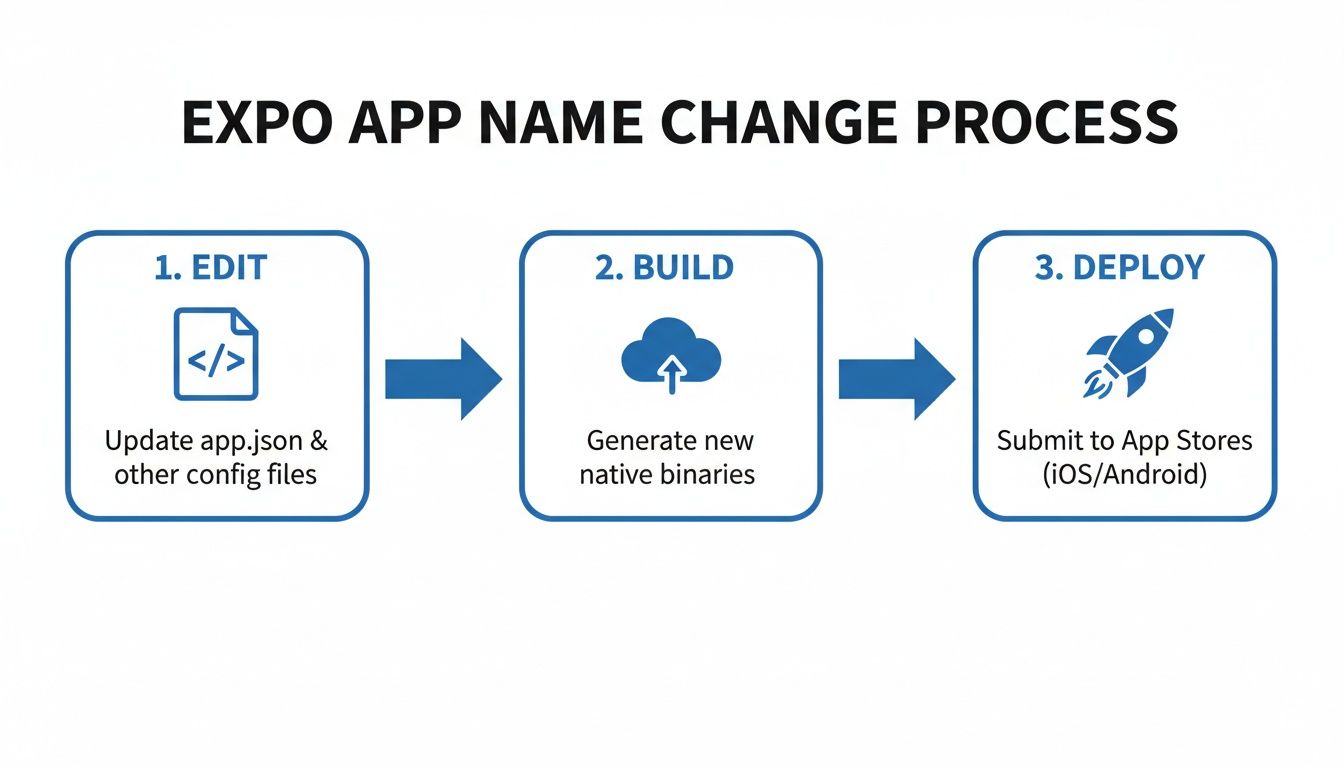
This flowchart breaks it down perfectly. You make your changes, run a build to create the new app binary, and then push that update out to the stores.
For an iOS project, the name that users actually see is managed almost entirely within Xcode. The first thing you'll want to do is open your project’s .xcworkspace file, which you'll find tucked away inside the ios directory of your React Native project.
Once Xcode is up and running, find your project's main target settings. Click over to the "General" tab, and you'll spot a field labeled "Display Name." This is what shows up on a user's home screen. Changing the value here is the quickest, most direct way to update your app's visible name.
Behind the scenes, though, this change is written to a critical file: Info.plist. You can also just edit this file directly. Look for the key CFBundleDisplayName. If it isn't there, you can add it. Setting the value here will actually override the "Display Name" from the project settings, making it the most reliable place to set your final configuration.
Over on the Android side, things are centered around resource files and build scripts inside your project’s android folder. The display name is kept separate from the code on purpose, primarily to make things like localization a breeze.
Your main destination is the strings.xml file, located at android/app/src/main/res/values/strings.xml. Pop that file open, and you'll see a string resource named app_name.
Just change the value here to your new app name. This is the exact string that AndroidManifest.xml pulls from to set the application's label, which is ultimately what users see on their device.
The push for easy name changes reflects what's happening in the market. AppTweak data shows that while branded titles get 60% of downloads versus keyword-focused ones, hybrid names can boost visibility by 35%. Interestingly, stats show 70% of top-grossing apps changed their name within the first year, which correlated with a 26% jump in user sessions. This really highlights how a strategic name change can be a key part of scaling. You can get a full look at these market trends in name change services.
Let's be honest: hunting down and updating every single file manually is tedious and a recipe for errors. It's so easy to miss one reference, leading to a broken build or inconsistent branding. This is where tools from the community are a lifesaver.
One of the most popular packages out there for this is react-native-rename. It’s a slick command-line tool built specifically to automate changing both the display name and all the underlying bundle/package identifiers across your entire project.
Using it couldn't be simpler. After installing it globally or just using npx, you run one command:
npx react-native-rename "NewAppName" -b com.yourcompany.newappname
This little command will churn through your project, updating filenames, directory structures, and content inside crucial files like build.gradle, Info.plist, and project.pbxproj. It does all the grunt work for you.
Pro Tip: Always, always commit your code to version control before you run a tool like
react-native-rename. It gives you a safety net. If anything goes sideways, you can instantly revert the changes and try again without any stress.
Sometimes, even the best tools might not catch every single instance of your old app name. This is especially true if you have references in custom native code, comments, or documentation. A final manual "find and replace" across the entire project is a smart last step.
Your code editor's global search is your best friend here. In VS Code, for example, you can scan the entire workspace in seconds.
Here are a few hotspots to double-check:
android/app/src/main/java/com/ directory. The folder path itself often contains your old package name and will need to be refactored..java or .kt files on Android, and .h or .m files on iOS. The main application files are common culprits.build.gradle files another look-over for any lingering applicationId or namespace references.Product > Scheme > Manage Schemes.A thorough search ensures no stone is left unturned and is key to a clean, professional rebrand. If you want to understand more about how these files are generated in the first place, our guide on setting up a new React Native project is a great place to start.
Once you're done, always clean your build artifacts before creating a new build. For Android, run ./gradlew clean from the android directory. For iOS, just use Product > Clean Build Folder in Xcode. This clears out any old, cached values that could mess with your freshly renamed app.
Okay, you've wrestled with the codebase and changed the app name. That's a huge step, but the work isn't over yet. The changes you made in app.json or your native project files are just the internal part. Now, it's time to handle your app's public face on the App Store and Google Play.
This is your chance to make sure everything lines up perfectly with your new brand identity and gives users a seamless experience from the first glance.

Think of this as more than just swapping out a title. It's about telling a cohesive brand story across every touchpoint a potential user sees. Your app's name, description, screenshots, and promotional text all need to sing the same tune. To do this right, you'll want to brush up on App Store Optimization (ASO) to make sure your new name and metadata actually help you get found. If you're new to the concept, this is a great primer on What ASO Stands For and How to Master It.
Apple and Google are aiming for the same thing, but they play by different rules. You’ll need to pay close attention to the specifics of each platform to nail the update.
On Apple's App Store Connect:
On the Google Play Console:
Don't just change the name and call it a day. Use this as an opportunity to audit all of your metadata. Are your keywords still relevant? Do your screenshots show off the latest UI? A holistic update is always more effective than just a simple name swap.
A name change is the perfect excuse to rethink your whole ASO strategy. For example, instead of stuffing keywords into your main title, you can use the subtitle (iOS) or short description (Android) to target secondary search terms. This keeps your brand name clean while still pulling in valuable organic traffic.
Let’s say you’re rebranding an app from "Quick Tasks" to "Momentum."
See how that works? The new, clean brand name is front and center, but you're strategically using the other fields to keep your search visibility strong. This is a go-to tactic for teams serious about building apps with React Native because it ensures their hard work actually gets seen.
If your app has a global audience, just translating your new name might not cut it. A name that sounds great in English could have a weird meaning or be impossible to pronounce somewhere else. True localization is about adapting your brand so it genuinely connects with different cultures.
When done right, this approach has a massive payoff. Global success often comes down to names that work across borders. In fact, smart localization can slash failure rates by a staggering 40% during expansion. It’s no surprise that 80% of developers now use ASO tools to audit keywords before a name change, often seeing a 20-50% jump in search rankings as a result.
The very last thing to do is a final sweep for consistency. Before you hit "submit for review," check everything. Your promotional text, the "what's new" section, the detailed description, and every single screenshot must reflect the new brand. Nothing confuses a potential user more than seeing an old name in a product image right after reading the new one in the title.
Alright, let's get this done. Changing an app's name seems like it should be a simple find-and-replace job, but if you've been in the trenches with React Native for any length of time, you know it's never that easy. This one little change can send ripples through your entire project, causing some truly bizarre and frustrating bugs.
Builds that worked yesterday suddenly fail. Push notifications go silent. It’s enough to make you pull your hair out. But don't worry—knowing what to look for is half the battle.
This section is your field guide for squashing those post-rename gremlins. We’ll walk through the most common issues I’ve seen and then wrap up with a final, sanity-saving checklist to run through before you even think about hitting that "submit for review" button.
So, you’ve updated what you thought were all the necessary files, but now things are acting weird. Most of the time, these head-scratchers come down to two culprits: old, cached data or a sneaky reference to the old name that you missed somewhere deep in the project.
Here’s what you’ll likely run into:
MainActivity.java or AppDelegate.m) was missed.bundleIdentifier (iOS) and package (Android). If you changed these but forgot to update the configuration in your Firebase project console, your backend literally can't find your app anymore. This is a critical check—broken notifications can tank your user engagement.I’ve seen this trip up so many developers: third-party SDKs for analytics or crash reporting suddenly go dark. Just like with push notifications, these services often rely on that unique package name to link data to the correct app dashboard. Always, always check their dashboards after a rebrand to make sure data is still flowing.
Sometimes, you nail the technical side, everything builds perfectly, but you still hit a wall during the app store review. When rejections are related to naming, it's almost always about consistency and identity.
A classic rejection on Google Play is a mismatch between the applicationId in your build.gradle and the package name of the app you're trying to update. It's a safety measure to stop one app from accidentally overwriting a totally different one.
Over on Apple’s side, they might flag a name change if it looks like you're trying to impersonate another popular app or if the new name is wildly different from the app's core function. Just make sure your new name, icon, and screenshots all tell the same, consistent story.
To sidestep all these potential headaches, you need a final, methodical review. Think of this checklist as your last line of defense before you ship the update to the world. Go through each item, and don't just tick the box—actually verify it.
| Pre-Publish App Renaming Checklist |
|---|
| Check Item |
| App Display Name |
| App Icons & Splash Screens |
| Bundle & Package Identifiers |
| Native Project Files |
| Third-Party SDKs |
| Store Listing Metadata |
| Screenshots & Promo Media |
| Clean Build |
Running through this checklist systematically does more than just prevent bugs. It gives you the confidence that your renamed app is not just technically sound, but also presents a polished and professional brand to every single user.
Alright, let's tackle some of the most common questions that pop up when you're thinking about renaming your app. Getting these details right is crucial for a smooth transition, especially when your app is already live.
Yes, you absolutely can. The display name—the name users see on their home screen under your app icon—is completely flexible. You can change it anytime by simply submitting a new version of your app to the App Store and Google Play. It’s a standard, safe update.
But here’s the critical part: the underlying identifiers are a different story.
Changing the Bundle ID on iOS or the Application ID on Android for an already-published app is like trying to get a new social security number. The app stores will treat it as a brand-new, entirely separate application. This is a move you almost never want to make, as it means starting from scratch with a fresh store listing and losing all your hard-earned history.
Not at all, as long as you're only changing the display name.
Your existing users will just see the new name pop up when they install the update. All your ratings, reviews, download numbers, and user data will stay exactly where they are, perfectly intact.
The only way you'd run into trouble is by changing those core identifiers (the Bundle ID or Application ID). That’s what severs the connection to your original store listing and effectively wipes the slate clean.
A simple way to think about it: The display name is like a nickname—it can change. The Bundle ID is the app's unique fingerprint—it’s permanent once it's out in the wild. Stick to changing the name, not the core identity.
This one really depends on what you changed.
If you only updated the user-facing display name, you don't have to touch your Firebase project. Everything will keep working just fine. Your backend services connect to your app using those unique identifiers, not the name people see.
However, if you did go down the tricky path of changing the Bundle Identifier (iOS) or Application ID (Android), then updating third-party services is non-negotiable. Services like Firebase, push notification providers, and social login SDKs all rely on that unique ID. Forget to update the new ID in their dashboards, and those critical integrations will break instantly.
Ready to build your next React Native app without starting from scratch? theappmarket offers a massive collection of production-ready templates and UI kits to help you ship faster. Check out our catalog and find the perfect foundation for your project at https://theappmarket.io.

Dec 14, 2025
4 min read
Find the perfect React Native UI library for your project. This guide compares top libraries, selection criteria, and customization strategies.
Dec 12, 2025
4 min read
Discover the best React Native component library for your next project. We compare top libraries on performance, customization, and real-world use cases.
Dec 11, 2025
4 min read
Discover how to choose the right React Native UI kit. This guide covers top kits, selection criteria, and customization to accelerate your app development.

Dec 10, 2025
4 min read
Explore our in-depth guide to find the best React Native UI library. We compare top contenders to help you choose the right fit for your project.

Dec 09, 2025
4 min read
Discover a practical approach to building apps with React Native. This guide covers setup, UI, state management, and testing to help you ship great apps.

Dec 08, 2025
4 min read
android login with facebook: Learn to set up the Facebook SDK, manage tokens, and implement secure authentication across native Android, cross-platform apps.

Dec 07, 2025
4 min read
Master the alert in React Native. Learn to handle platform differences, build custom modals, and apply best practices for a seamless user experience.
Dec 06, 2025
4 min read
keyboardavoidingview react native: Master keyboard handling with KeyboardAvoidingView across iOS, Android, Expo, and TypeScript.

Dec 05, 2025
4 min read
A practical guide to implementing a React Native PDF viewer. Learn to compare libraries, handle native setup, and troubleshoot common issues with real code.

Dec 04, 2025
4 min read
how to validate startup idea: learn proven methods like customer interviews, MVPs, and metrics to confirm market fit.

Dec 03, 2025
4 min read
how to make app like uber: Learn core features, tech stack, development steps, testing, and launch tips.

Dec 02, 2025
4 min read
Build a rock-solid React Native setup. This guide covers Expo vs. Bare workflows, TypeScript, pnpm monorepos, NativeWind, and deployment strategies.
Dec 01, 2025
4 min read
A practical guide to Stripe React Native integration. Learn to set up your server, build payment UIs, handle webhooks, and launch secure mobile payments.

Nov 30, 2025
4 min read
Learn how to master push notifications in React Native. This guide covers setup, best practices, and advanced techniques for engaging your users.

Nov 29, 2025
4 min read
Build powerful location-based apps with our practical guide to react native with google maps. Get setup guides, pro tips, and best practices for iOS & Android.

Nov 28, 2025
4 min read
Explore deep linking react native with a practical guide to configuring URL schemes, universal links, navigation, and testing for Expo and bare apps.

Nov 28, 2025
4 min read
A practical guide to building a scalable React Native design system. Learn to implement tokens, theming, and tools like NativeWind and gluestack-ui.
Nov 26, 2025
4 min read
Learn why react native expo templates speed up your projects with ready-made patterns and practical tips.

Nov 25, 2025
4 min read
Discover how to improve developer productivity with actionable strategies for workflow, tooling, and culture. A practical guide for software engineering teams.

Nov 24, 2025
4 min read
Discover the best cross platform app development tools. Compare top frameworks like Flutter and React Native to build and ship apps faster.

Nov 23, 2025
4 min read
This Expo React Native tutorial provides a hands-on guide to building cross-platform apps. Learn setup, styling with NativeWind, navigation, and deployment.

Nov 22, 2025
4 min read
Build beautiful UIs faster with this guide to Tailwind CSS React Native. Learn setup, styling, and advanced techniques with NativeWind for mobile apps.

Nov 21, 2025
4 min read
Explore our curated list of 7 top-tier React Native app examples. Discover production-ready templates and resources to build your next app faster.

Mar 19, 2025
4 min read
theappmarket offers React Native UI templates to accelerate development. Get customizable, production-ready React Native app templates and Ui kit, some free. Build faster & smarter today!


